

In this tutorial we will learn to create multiple frames in java. Here we will be creating two classes for example OldWindow and NewWindow class respectively. OldWindow class will consist the actual logic for frame creation while the NewWindow class will have the design structure of JFrame .
- So, to learn to create multiple frames in java follow the steps given below :
-
- First of all open up eclipse -> Go to File-> New-> Java Project, just select the Java Project as shown below :
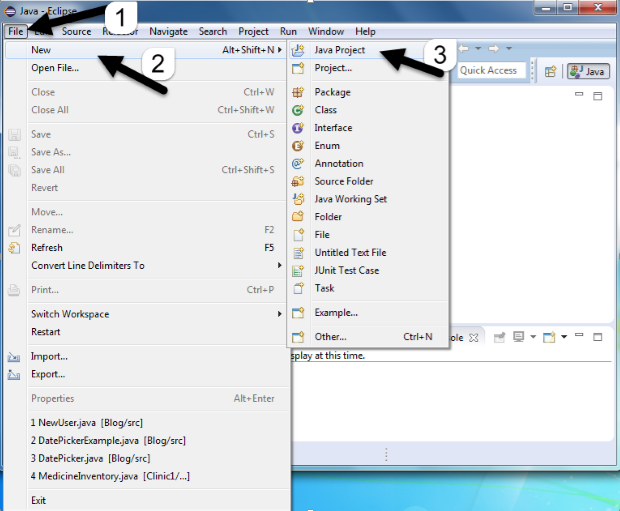
<br<
-
- After selecting Java Projet a dialog box will pop up asking for project details. So, fill the respective details and click on Finish button.
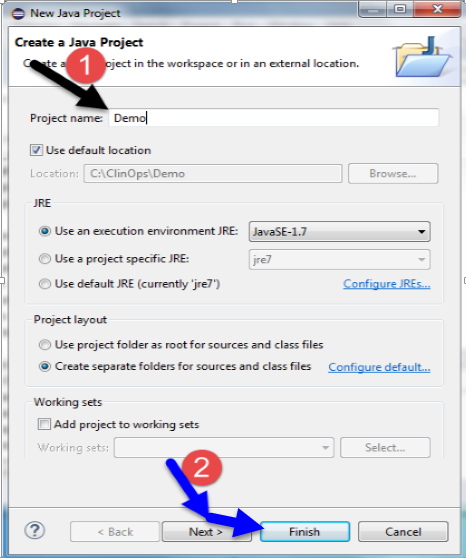
-
- Now, you can view your project and select it from the package explorer present at the left hand side.

-
- Now let’s create two new java classes called as OldWindow and NewWindow respectively. So, for generating these class, select your project -> right click on src -> New -> Class as shown below :
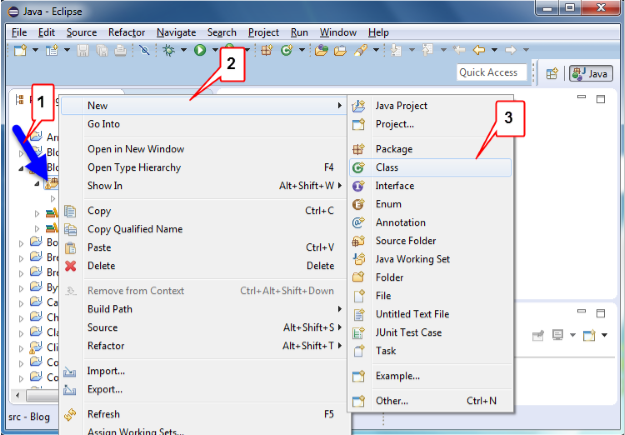
-
- Now insert the respective class details :
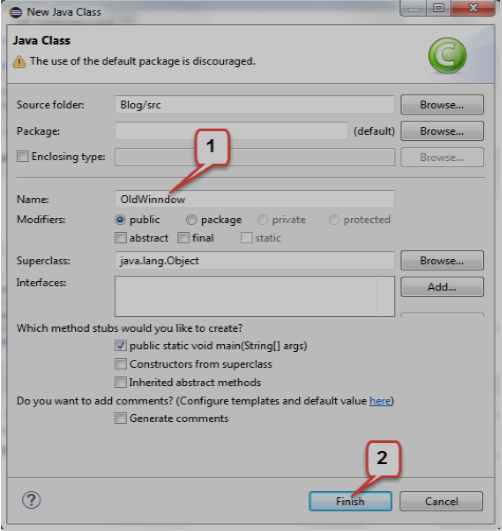
-
- Similarly, create NewWindow class and now you will be having your both the classes generated in your project in the package explorer.


-
- Now open up OldWindow.java class and write the actual logic code, which will create JFrame, JButton and open up a New Frame to display.
-
- Insert the given code in OldWindow.java class:
//import statement
import java.awt.Color;
import java.awt.EventQueue;
import java.awt.Font;
import java.awt.event.ActionEvent;
import java.awt.event.ActionListener;
import javax.swing.JButton;
import javax.swing.JFrame;
import javax.swing.JLabel;
import javax.swing.JPanel;
import javax.swing.border.EmptyBorder;

//create class and extend with JFrame
public class OldWindow extends JFrame
{
	//declare variable
	private JPanel contentPane;

	/**
	 * Launch the application.
	 */
	//main method
	public static void main(String[] args)
	{
		/* It posts an event (Runnable)at the end of Swings event list and is
		processed after all other GUI events are processed.*/
		EventQueue.invokeLater(new Runnable()
		{
			public void run()
			{
				//try - catch block
				try
				{
					//Create object of OldWindow
					OldWindow frame = new OldWindow();
					//set frame visible true
					frame.setVisible(true);
				}
				catch (Exception e)
				{
					e.printStackTrace();
				}
			}
		});
	}

	/**
	 * Create the frame.
	 */
	public OldWindow()//constructor
	{
		//set frame title
		setTitle("Old Frame");
		//set default close operation
		setDefaultCloseOperation(JFrame.DISPOSE_ON_CLOSE);
		//set bounds of the frame
		setBounds(100, 100, 450, 300);
		//create object of JPanel
		contentPane = new JPanel();
		//set border
		contentPane.setBorder(new EmptyBorder(5, 5, 5, 5));
		//set ContentPane
		setContentPane(contentPane);
		//set null
		contentPane.setLayout(null);

		//create object of JButton and set label on it
		JButton btnNewFrame = new JButton("New");
		//add actionListener
		btnNewFrame.addActionListener(new ActionListener()
		{
			public void actionPerformed(ActionEvent arg0)
			{
				//call the object of NewWindow and set visible true
				NewWindow frame = new NewWindow();
				frame.setVisible(true);
				//set default close operation
				setDefaultCloseOperation(JFrame.DISPOSE_ON_CLOSE);
			}
		});
		//set font of the Button
		btnNewFrame.setFont(new Font("Microsoft YaHei UI", Font.BOLD, 12));
		//set bounds of the Button
		btnNewFrame.setBounds(180, 195, 78, 25);
		//add Button into contentPane
		contentPane.add(btnNewFrame);

		//set Label in the frame
		JLabel lblThisIsOld = new JLabel("This is Old Frame");
		//set foreground color to the label
		lblThisIsOld.setForeground(Color.BLUE);
		//set font of that label
lblThisIsOld.setFont(new Font("Times New Roman", Font.BOLD | Font.ITALIC, 24));
		//set bound of the label
		lblThisIsOld.setBounds(127, 82, 239, 39);
		//add label to the contentPane
		contentPane.add(lblThisIsOld);
	}
}
-
- Just follow the comments to understand the code.
-
- Now, open your NewWindow.java class and add the given code which creates JFrame, JLabel into the New Frame.
//import statement
import java.awt.Color;
import java.awt.EventQueue;
import java.awt.Font;
import javax.swing.JFrame;
import javax.swing.JLabel;
import javax.swing.JPanel;
import javax.swing.border.EmptyBorder;

//create class and extend with JFrame
public class NewWindow extends JFrame
{
	//declare variable
	private JPanel contentPane;
	/**
	 * Launch the application.
	 */
	//main method
	public static void main(String[] args)
	{
		/* It posts an event (Runnable)at the end of Swings event list and is
		processed after all other GUI events are processed.*/
		EventQueue.invokeLater(new Runnable()
		{
			public void run()
			{
				//try - catch block
				try
				{
					//Create object of NewWindow
					NewWindow frame = new NewWindow();
					//set frame visible true
					frame.setVisible(true);
				}
				catch (Exception e)
				{
					e.printStackTrace();
				}
			}
		});
	}

	/**
	 * Create the frame.
	 */
	public NewWindow() //constructor
	{
		//set frame title
		setTitle("New Frame");
		//set default close operation
		setDefaultCloseOperation(JFrame.DISPOSE_ON_CLOSE);
		//set bounds of the frame
		setBounds(100, 100, 450, 300);

		//create object of JPanel
		contentPane = new JPanel();
		//set border
		contentPane.setBorder(new EmptyBorder(5, 5, 5, 5));
		//set ContentPane
		setContentPane(contentPane);
		//set null
		contentPane.setLayout(null);

		//label in the frame
		JLabel lblWelcome = new JLabel("Welcome this is New Frame");
		//set fore ground color to the label
		lblWelcome.setForeground(Color.RED);
		//set font to the label
	lblWelcome.setFont(new Font("Times New Roman", Font.BOLD | Font.ITALIC, 24));
		//set bounds of the label
		lblWelcome.setBounds(75, 100, 294, 32);
		//add label to the contentPane
		contentPane.add(lblWelcome);
	}
}
-
- We are all done. Now, just select your project from the package explorer and run it.
-
- You will have the following output:
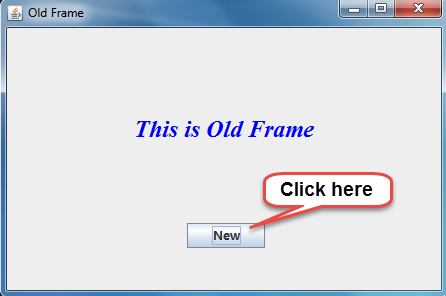
-
- After clicking the new button you will be navigated to new window as shown below:

Thus, we have successfully learnt to create multiple frames in java and navigated from one frame to another.
About the Author




JFrame is a window commonly used for stand-alone applications, like a warning window, or a notification window . Thanks for sharing this blog , keep blogging.