In our blog today we will discuss the use of local storage in HTML5. Using local storage features we can store values within our local browser. Cookies are also used for similar purpose but local storage provides a better way to do it. We use a pair of key/value to store the data locally. It Has the following advantages:
By storing the data locally you can use the application when you are offline.
It also enhances the speed of our system because all the data is stored locally.
Burden on the server decrease.
By using this every browser has a space of 5-10 Mb to store data on the other hand cookies have maximum capacity of 4kb.
By using the same we save the data on the client side not on the server side.
There are two types of data
1)Session data or session storage >> it stores data until browser is not closed.
2)Local storage >> it retrieve the data when the browser is started.
The following code demonstrates the use of local storage
<!DOCTYPE HTML>
<head>
<meta http-equiv="Content-Type" content="text/html; charset=utf-8" />
<title>Local Storage</title>
</head>
<body>
<p>Demonstration of Local Storage</p>
<div id="output"></div>
<script>
if(typeof(Storage) !== "undefined"){
	localStorage.setItem("item_0","Movies");
localStorage.setItem("item_1","Artists");
	var item = localStorage.getItem("item_0");
	document.getElementById("output").innerHTML=item;
	document.write(localStorage.getItem("item_1"));
	}
	else{
		document.getElementById("output").innerHTML="not supported";
		}


</script>
</body>
</html>
Explanation
The div tag is written with id as “output”, we have to use it to print the output. We then check if the local storage is supported using [if(typeof(Storage) !== “undefined”)]. The next line of code is used to set or provide a value to the local storage that means to store an item on the client side. Here we used key/value pair to do the same.
Key is “item_0” and “item_1” and their respective values are “Movies ” and “Artists”.
We then will retrieve the element from local storage and for that we have to pass the key to that value as we pass cookies. We retrieve the value by using .getitem(“key”). We then print the output.
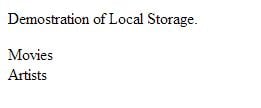
Output
About the Author