

In this article, we will be learning how to create a login form in Java using NetBeans.
Installation of NetBeans
The Java SE Development Kit(JDK) 7 or JDK 8 is required to install the NetBeans IDE.
Now, download the latest NetBeans IDE from its official channel. Download the whole IDE bundle version depending upon your processor architecture. The user can add or remove the packs using the IDE’s Plugin Manager. You can check out the steps to install and use NetBeans in this article.
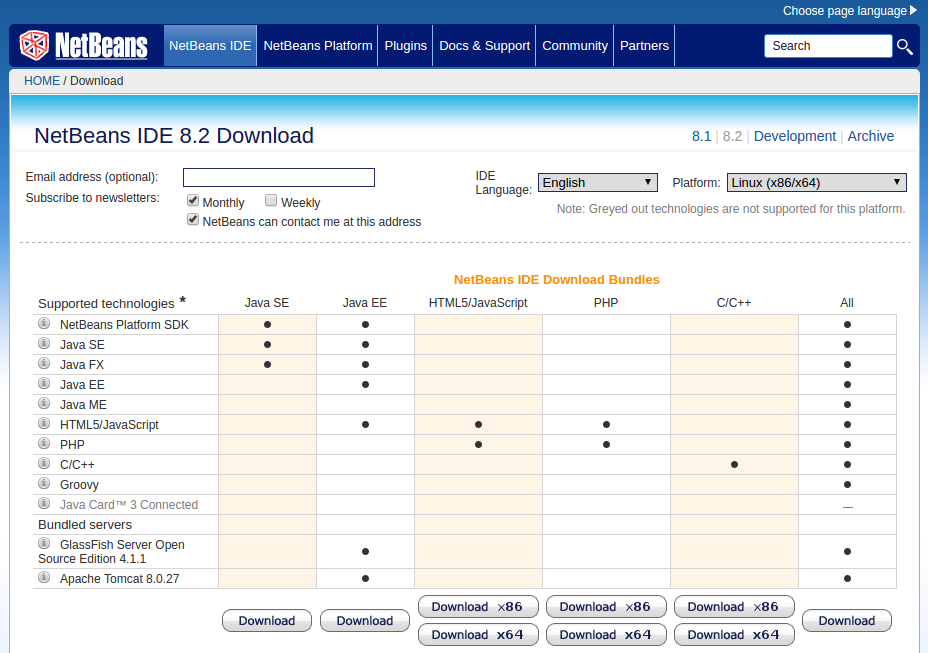
Assume that you have successfully installed NetBeans on your machine. Start the NetBeans from the Window. The NetBeans main window will appear as shown below.
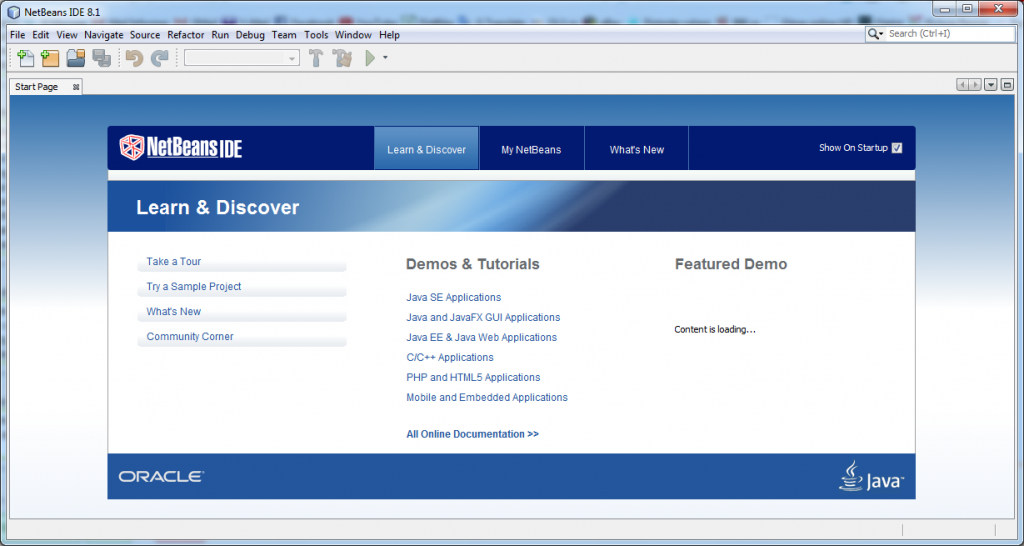
The NetBeans main window contains menus, toolbars, the project pane, the files pane, the runtime pane, the navigator pane, and other panes. The NetBeans main window is the command center for the IDE.
Read More: Jobs In Demand For 2020 & Beyond: 15 Careers You Can’t Ignore!!
Creating a blank Project
To create and run a program, you have to first create a project.
Here are the steps to create a demo project
Step 1: – Choose File and New Project to display the New Project dialog box.
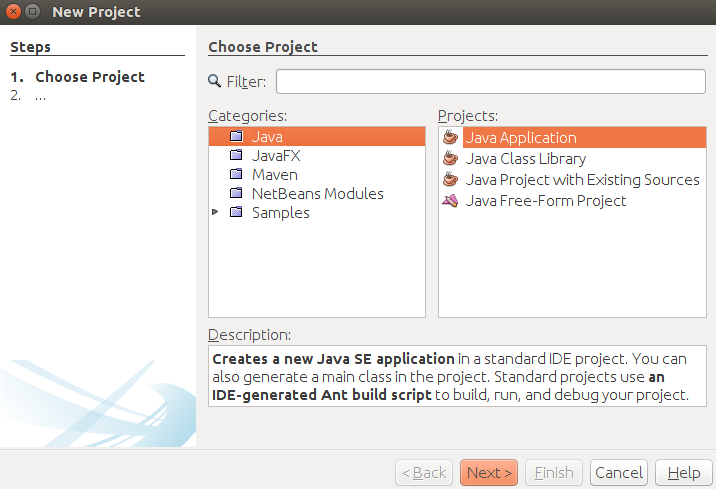
The new project box enables you to specify the project type.
Step 2: – Choose the Java type from the given list.
Step 3: – From the New Application Tab, enter the project name and unselect the main class from it.
Login Form
These steps are to be followed.
Step 1: – Create a blank Java project with the name loginpageclassy. Uncheck the Main class option from the project tab. Note down the address of the directory and download any image for a background and login label and for the header a shown below.
Step2: – To add a JFrame, right-click the project name in the Project window.
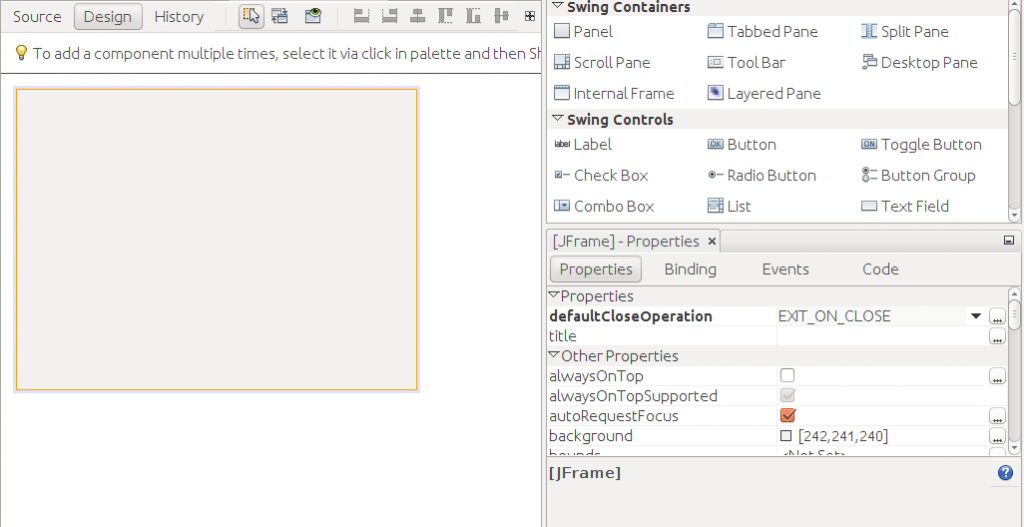
Step 3: – Now right-click the JFrame, click Set Layout and select Null Layout from the option.
Step 4: – Open the project folder and drag those images into the project field as shown below.
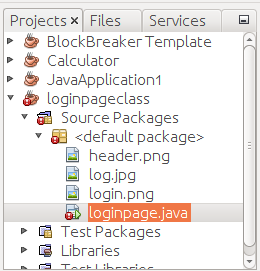
Step5: – Now drag a label field from the palette. Right-click on the Jlabel button and select icons, where you can select the image for that particular label. Make this label the background of the project by extending it to all the four corners of the JFrame.
Step6: – Right-click on the label field to enter into the Properties and select the icon to set the custom icon for the label. Make this label the background of the project by extending it to all the four corners of the JFrame.
Step7: – Now drag a Text Field and a Password Field from the Pallette into the JFrame. Now, Drag three more labels into the JFrame for labeling the Username, Password and for the Login button.
Step8: – Set the Text field and the Password field to empty. Rename the label for the Username and the Password. Therefore the whole form appears as below.

Step9: – Now, Right-click on to the Login button and select Events >>Mouse >>Mouse Click.
This will direct it to the Source section.
Source Coding
A string ‘ext’ is declared in order to get the text entered into the Password field. The text entered in the text field and the password field is compared with the Username and the password, which has been set already. If the text entered in both the fields match with the previously saved ones, the user gets a pop-up message showing that the Login was successful, else a Login Failed message will appear.
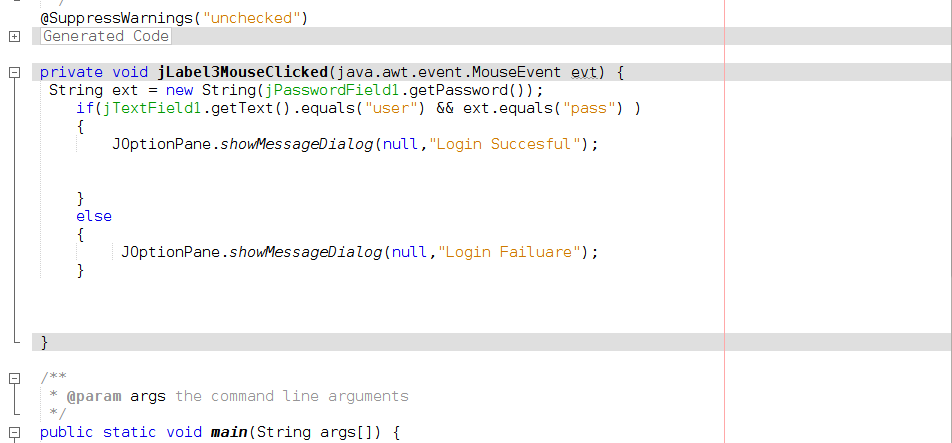
Right-click on to the Login button and select Events >>Mouse >>Mouse Click.
This will direct to the below statement in the Source section.
private void jLabel3MouseClicked(java.awt.event.MouseEvent evt)
Declaration of string and coding for the comparing Username and Password.
The diagram below lists the purpose of each statement used in this logic.
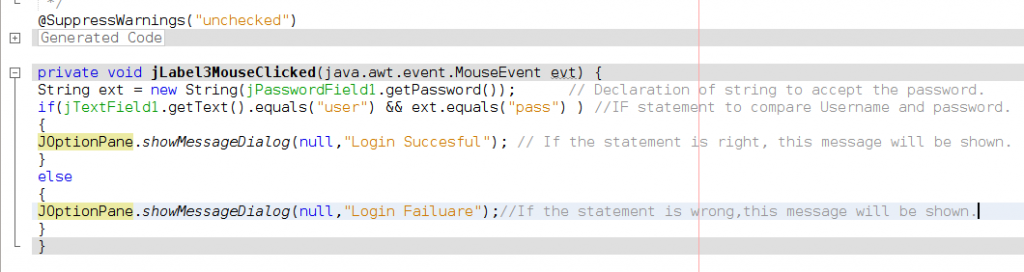
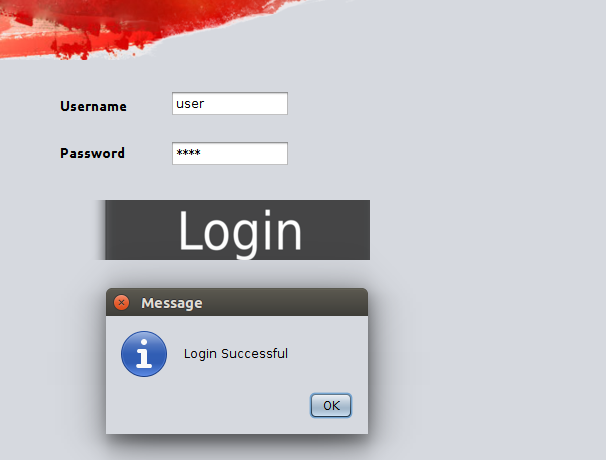
Now, Save the program and click the Run button.
The Login form will be shown. Enter the Username and Password correctly. This gives a message tab showing that the login was successful.
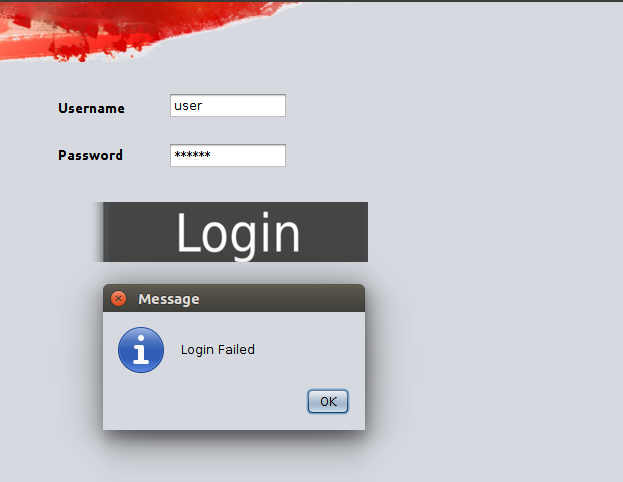
If the Username or the password entered is wrong, the screen shown below appears.
Now that you have successfully learned to build an impressive login page, you can also try making other projects such as creating a basic calculator in Java using Netbeans. Also, if you want to build more projects in Java as a beginner, try “Learn Projects in Java for Beginners from Scratch” online course absolutely FREE!
We hope that this article has helped you in understanding the basics of creating a Login Form. Feel free to contact us in case if you face any issues regarding the same.
People Are Also Reading:
- 10 Ways to Learn Java in just a Couple of Weeks
- Is It Possible to Use Java with iOS?
- Docker for Java Development Environment With Ubuntu
Latest Updates On Coronavirus
- Using Various Technologies To Prevent Coronavirus!!
- How Tech-Giants Are Using Technology to Fight COVID-19?
- Coronavirus Impact on Top Tech Conferences Around the World
About the Author




Ok, this works but, what if I don’t want to hardcode the password and I would want to store/update the users and passwords using a relational database. What would be the best way to achieve this? Regards.
Use JDBC to connect to the data base and then get the table details onto your form.
i know nothing, i want details of it from base part. Where can it be available?
same…
this is no aid for beginners.
m a beginner in java and i knw nothing how can i be helped or is there any othr platform say whatsapp where i can get help from
The question say load array with login detail .the user will input his or her logins on textfield..if logins deatails input by user match with the one populated on the array , display accurate message.
NB using jframe on NetBeans
Every thing i understand but in password textbox there’s “*****” where it is came from
by using passworld field instead of textfield
It is because you use JPasswordField
thank you..
now how can i make a login form with 2 diferent user and 2 different main menu according to the user level.
thanks
how can i get code for this?
Code please