
Version control is one of the most essential skills for modern software development, and Git has become the industry standard for tracking code changes and enabling team collaboration. Whether you’re working on a personal project or contributing to a large enterprise application, you’ll eventually need to integrate changes from different branches.
This is where developers often face an important question:
Should you use Git Merge or Git Rebase?
Both commands combine changes from different branches, but they do so in fundamentally different ways. Choosing the wrong approach can lead to a cluttered commit history, unnecessary merge commits, or even rewritten project history that affects your teammates.
In this guide, you’ll learn how Git Merge and Git Rebase work, their differences, advantages, disadvantages, and the scenarios where each approach is most appropriate.
Understanding Git Branches
Before comparing Merge and Rebase, it’s important to understand why Git branches exist.
A branch allows developers to work on new features, bug fixes, or experiments without affecting the main codebase.
For example, a project may contain:
- main – Production-ready code
- develop – Ongoing development
- feature/login – Login feature
- feature/payment – Payment integration
- bugfix/navbar – Navigation bug fix
Each developer can work independently on their branch before integrating changes into the main project.
What is Git Merge?
Git Merge combines the histories of two branches while preserving every commit made on each branch.
Instead of rewriting history, Git creates a new merge commit that connects both branches together.
This makes Merge one of the safest ways to integrate code because it maintains a complete record of project history.
How Git Merge Works
Suppose your project history looks like this:
main
A ─── B ─── C
feature
\
D ─── E
After merging the feature branch into main, Git creates a merge commit.
main
A ─── B ─── C ─── M
\ /
D ─── E
Notice that:
- The original commits remain unchanged.
- Git adds a new merge commit (M).
- The complete development history is preserved.
Performing a Git Merge
First, switch to the target branch.
Syntax
git checkout <target-branch>
Example
git checkout main
Explanation
This command switches to the branch where you want to merge your feature branch.
Next, merge the feature branch.
Syntax
git merge <branch-name>
Example
git merge feature/login
Explanation
Git combines the changes from feature/login into the main branch.
If there are no conflicts, Git automatically creates a merge commit.
Expected Result
Merge made by the ‘ort’ strategy.
Your feature branch has now been successfully merged.
Fast-Forward Merge
Sometimes Git doesn’t need to create a merge commit.
If no new commits exist on the target branch, Git simply moves the branch pointer forward.
Example:
Before
A ─── B
\
C ─── D
After merging:
A ─── B ─── C ─── D
Since there were no diverging commits, Git performs a Fast-Forward Merge.
This keeps the history linear without creating an unnecessary merge commit.
Advantages of Git Merge
Git Merge offers several benefits:
- Preserves complete project history
- Does not rewrite existing commits
- Safe for collaborative projects
- Easy to understand
- Maintains context for feature development
- Preferred for shared branches
Limitations of Git Merge
Despite its advantages, Merge also has drawbacks:
- Creates additional merge commits
- Commit history may become cluttered
- Large projects can develop complex branch graphs
- History is less linear
Real-World Use Cases for Merge
Git Merge is commonly used for:
- Team collaboration
- Open-source projects
- Long-running feature branches
- Production releases
- Shared repositories
What is Git Rebase?
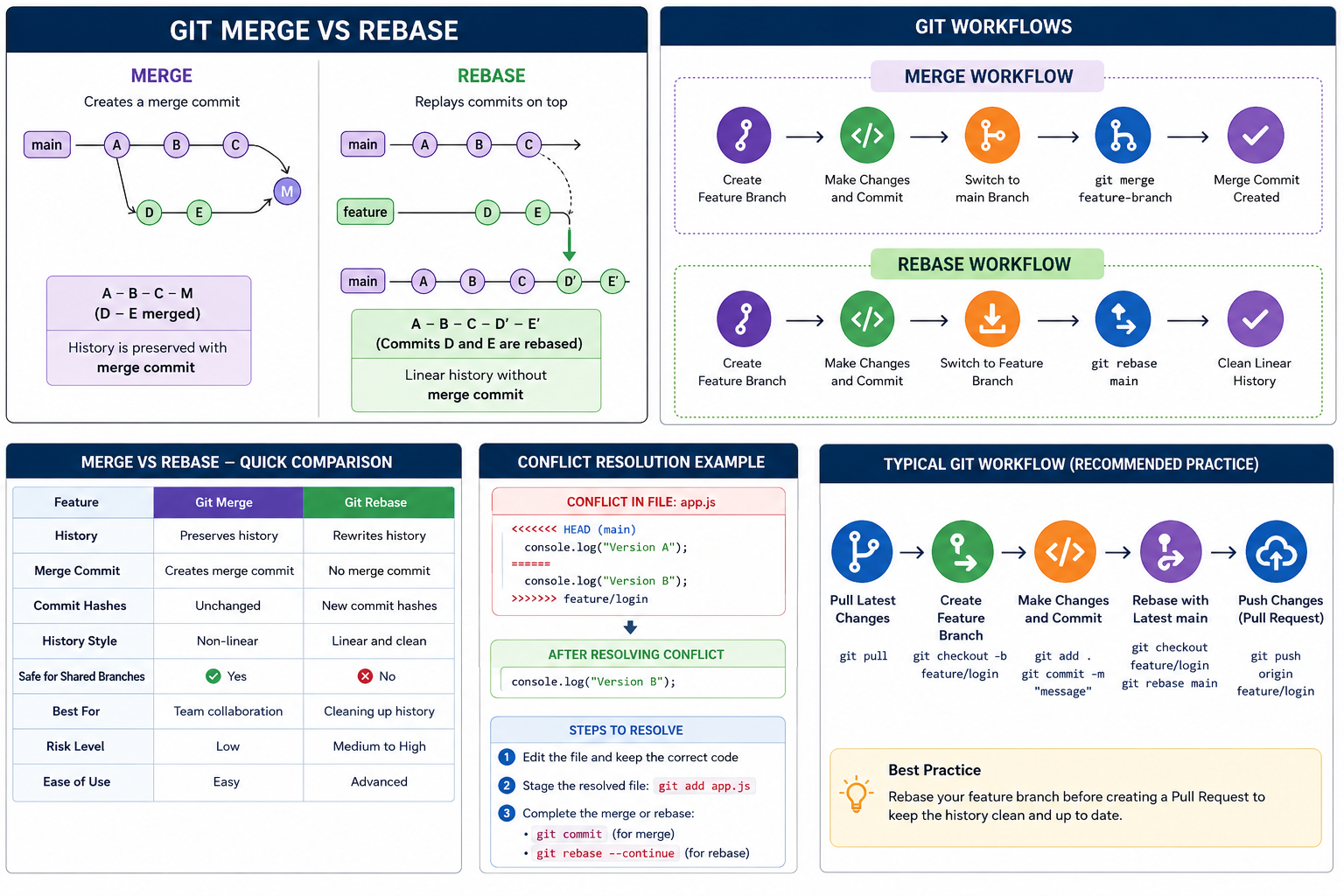
Unlike Merge, Git Rebase rewrites commit history.
Instead of creating a merge commit, Rebase moves commits from one branch and reapplies them on top of another branch.
The result is a much cleaner and more linear project history.
How Git Rebase Works
Consider the following branches:
main
A ─── B ─── C
feature
\
D ─── E
After running Rebase:
main
A ─── B ─── C ─── D’ ─── E’
Notice something important:
- Commits D and E are recreated.
- Git generates new commit hashes.
- No merge commit is created.
- The history appears as though development happened sequentially.
This is why Rebase produces a cleaner Git history.
Performing a Git Rebase
First, switch to your feature branch.
Syntax
git checkout <feature-branch>
Example
git checkout feature/login
Explanation
This command switches to the branch that needs to be updated with the latest changes from the main branch.
Next, perform the rebase.
Syntax
git rebase <base-branch>
Example
git rebase main
Explanation
Git temporarily removes the commits from the feature branch, updates the branch with the latest commits from main, and then reapplies your feature commits on top.
Expected Result
Successfully rebased and updated refs/heads/feature/login.
Your feature branch now includes the latest changes from the main branch while maintaining a clean commit history.
Rebase Workflow
Before Rebase
main
A ─── B ─── C
feature
\
D ─── E
After Rebase
main
A ─── B ─── C ─── D’ ─── E’
Notice that:
- No merge commit exists.
- Feature commits now appear after the latest main commit.
- Git creates new commit hashes for the rebased commits.
Advantages of Git Rebase
Git Rebase is popular because it offers:
- Clean and linear commit history
- Easier project navigation
- Simpler debugging with git bisect
- Fewer unnecessary merge commits
- Better readability for long-running projects
Limitations of Git Rebase
Although Rebase produces a cleaner history, it must be used carefully.
Some limitations include:
- Rewrites commit history
- Changes commit hashes
- Can create confusion if used on shared branches
- More difficult for beginners
- Incorrect usage can overwrite collaboration history
Merge vs Rebase Workflow Comparison
Merge
A ─── B ─── C ─── M
\ /
D ─── E
- Preserves complete history
- Adds a merge commit
Rebase
A ─── B ─── C ─── D’ ─── E’
- Creates a linear history
- No merge commit
- Rewrites commit history
Best Practices Before Using Either Command
Before merging or rebasing branches, keep these best practices in mind:
- Pull the latest changes from the remote repository.
- Commit or stash your current work before switching branches.
- Review the changes that will be integrated.
- Resolve conflicts carefully and test your application after integration.
- Avoid force-pushing rebased branches unless you’re certain it won’t affect collaborators.
Git Merge vs Git Rebase: Feature Comparison
Although both commands integrate changes from different branches, they serve different purposes. Understanding their differences helps you choose the right workflow for your project.
| Feature | Git Merge | Git Rebase |
| Commit History | Preserves original history | Rewrites commit history |
| Merge Commit | Creates a merge commit (unless fast-forward) | No merge commit |
| Commit Hashes | Remain unchanged | New commit hashes are created |
| History | Non-linear | Linear and clean |
| Safe for Shared Branches | ✅ Yes | ❌ No (unless everyone agrees) |
| Easy to Learn | ✅ Beginner-friendly | Requires more understanding |
| Best For | Team collaboration | Keeping feature branches up to date |
| Risk Level | Low | Medium to High if used incorrectly |
When Should You Use Git Merge?
Git Merge is the preferred choice when preserving project history is more important than maintaining a perfectly linear commit history.
Use Merge When:
- Multiple developers are working on the same branch.
- You’re merging completed feature branches into main or develop.
- You want to preserve the exact history of development.
- The repository is shared across a team.
- You’re contributing to open-source projects where history should remain intact.
Example Scenario
Imagine three developers are working on different features:
- Developer A – Authentication
- Developer B – Payment Integration
- Developer C – Notifications
Each developer completes their feature independently. Once reviewed, each feature branch is merged into the main branch.
Using Git Merge ensures the history clearly shows when each feature was integrated and preserves the context of parallel development.
When Should You Use Git Rebase?
Git Rebase is ideal when you want a clean, easy-to-read commit history without unnecessary merge commits.
Use Rebase When:
- Updating your feature branch with the latest changes from main.
- Cleaning up your own commits before creating a Pull Request.
- Working on a private branch that nobody else is using.
- Preparing commits for code review.
Example Scenario
Suppose you’ve been working on a feature for several days, and the main branch has received multiple updates from other developers.
Instead of merging main into your feature branch and creating an extra merge commit, you can rebase your branch onto the latest main. This makes it appear as though your work started from the most recent version of the project.
The result is a cleaner commit history that’s easier for reviewers to follow.
Interactive Rebase
One of Git’s most powerful features is Interactive Rebase, which lets you modify commit history before sharing your work.
With Interactive Rebase, you can:
- Reorder commits
- Rename commit messages
- Combine multiple commits into one (Squash)
- Remove unnecessary commits
- Split large commits into smaller ones
This is especially useful for cleaning up feature branches before opening a Pull Request.
Starting an Interactive Rebase
Syntax
git rebase -i HEAD~<number-of-commits>
Example
git rebase -i HEAD~4
Explanation
This command opens the last 4 commits in your default text editor, allowing you to modify them before they become part of the project’s permanent history.
Example Interactive Rebase Screen
- pick 2c1ab34 Add login page
- pick 5f6bc78 Fix login bug
- pick 8d9ef12 Update styles
- pick a1b2c34 Improve validation
You can replace pick with commands like:
| Command | Purpose |
| pick | Keep the commit |
| reword | Edit the commit message |
| edit | Modify the commit contents |
| squash | Combine with the previous commit |
| fixup | Merge commit and discard its message |
| drop | Remove the commit |
Interactive Rebase is an excellent way to organize your commit history before sharing your work.
Handling Merge Conflicts
Conflicts occur when Git cannot automatically determine which version of a file should be kept.
This can happen during both Merge and Rebase.
Example Conflict
Suppose two developers modify the same line of code in a file.
When Git encounters the conflict, you’ll see markers like:
<<<<<<< HEAD
console.log(“Version A”);
=======
console.log(“Version B”);
>>>>>>> feature/login
Git pauses the operation and waits for you to resolve the conflict manually.
Resolving a Merge Conflict
Step 1: Edit the file
Remove the conflict markers and keep the correct code.
Example:
console.log(“Version B”);
Step 2: Stage the resolved file
git add app.js
Step 3: Complete the merge
git commit
Git creates the merge commit after all conflicts have been resolved.
Resolving Rebase Conflicts
Rebase conflicts are handled slightly differently.
After resolving the conflicting file, continue the rebase process.
Continue Rebase
git rebase –continue
Skip the Current Commit
git rebase –skip
Cancel the Rebase
git rebase –abort
Explanation
- git rebase –continue resumes the rebase after you’ve resolved conflicts.
- git rebase –skip skips the problematic commit and continues with the remaining commits.
- git rebase –abort stops the rebase and restores your branch to its original state before the rebase began.
Git Merge vs Git Rebase in Team Workflows
Choosing the right strategy often depends on your team’s workflow.
Small Teams
Small teams may use Rebase more frequently to maintain a clean commit history, especially when developers work independently on short-lived feature branches.
Large Teams
Large organizations typically prefer Merge because it preserves history and reduces the risk of accidentally rewriting commits that others rely on.
Open-Source Projects
Many open-source projects use a combination of both:
- Developers rebase their local feature branches before opening a Pull Request.
- Maintainers merge approved Pull Requests into the main branch.
This approach balances a clean history with safe collaboration.
Common Mistakes Developers Make
Avoid these common Git mistakes when working with Merge and Rebase.
Rebasing a Shared Branch
Rebasing changes commit hashes. If other developers have already pulled those commits, rebasing can create confusion and require force pushes.
Recommendation: Only rebase branches that are private to you.
Force Pushing Without Understanding the Impact
After rebasing, developers often use:
git push –force
This can overwrite commits on the remote repository if used carelessly.
A safer alternative is:
git push –force-with-lease
This command ensures the remote branch hasn’t changed unexpectedly before overwriting it.
Creating Too Many Merge Commits
Frequent merges of main into a feature branch can clutter the commit history with unnecessary merge commits.
Consider rebasing your feature branch instead if it hasn’t been shared yet.
Ignoring Conflicts
Never ignore or rush through conflict resolution.
Always:
- Review every conflicting file carefully.
- Build the project after resolving conflicts.
- Run automated tests before pushing changes.
Best Practices
To keep your Git history clean and maintainable:
- Use Merge for shared branches and collaborative work.
- Use Rebase for local feature branches before sharing them.
- Pull the latest changes before merging or rebasing.
- Keep commits focused on a single logical change.
- Write clear and descriptive commit messages.
- Test your application after resolving conflicts.
- Avoid rewriting published history unless absolutely necessary.
- Use Interactive Rebase to clean up commits before creating a Pull Request.
Read More: Git Reflog: Recover Deleted Branches and Lost Commits Like a Pro
Which One Should You Choose?
There isn’t a universal “better” option. The right choice depends on your workflow.
Choose Git Merge if you:
- Work in a collaborative environment.
- Want to preserve the complete history of your project.
- Prefer a safer workflow with minimal risk.
Choose Git Rebase if you:
- Want a clean and linear commit history.
- Are working on a private feature branch.
- Need to prepare commits for code review.
- Want to simplify project navigation.
Many professional teams use both commands together:
- Rebase to update and clean local feature branches.
- Merge to integrate reviewed code into shared branches.
This hybrid workflow combines the strengths of both approaches.
Frequently Asked Questions (FAQs)
1. Is Git Rebase better than Git Merge?
Neither is inherently better. Git Merge is safer for collaboration because it preserves history, while Git Rebase creates a cleaner, linear history that’s easier to read.
2. Should I rebase the main branch?
No. Rebasing shared branches like main is generally discouraged because it rewrites commit history and can disrupt other developers.
3. Does Git Rebase delete commits?
No. Rebase does not delete commits, but it recreates them with new commit hashes, effectively rewriting the branch history.
4. Can I undo a Git Rebase?
Yes. If the rebase is still in progress, use:
git rebase –abort
If the rebase has already completed, you can often recover the previous state using Git’s reflog:
git reflog
Then reset to the desired commit if needed.
5. Why do many companies prefer Git Merge?
Many organizations choose Git Merge because it preserves the complete development history, making it easier to audit changes, review feature integrations, and collaborate safely across large teams.
Conclusion
Both Git Merge and Git Rebase are valuable tools for integrating changes, but they solve different problems.
Git Merge prioritizes safety and preserves the complete history of your project, making it the preferred option for collaborative development and shared branches.
Git Rebase focuses on creating a clean, linear history by replaying commits on top of the latest changes. It’s particularly useful for keeping feature branches up to date and organizing commits before they’re shared.
Understanding when—and more importantly, when not—to use each command helps you avoid unnecessary conflicts, maintain a readable project history, and collaborate more effectively with your team.
Rather than treating Merge and Rebase as competing approaches, think of them as complementary tools. Using each one in the appropriate context will help you build a Git workflow that is both efficient and reliable.
About the Author