
You delete a branch. Two minutes later you realize it had three days of unpushed work on it.
Or you run git reset –hard on the wrong commit and watch your changes vanish.
Before you panic — there’s a command built exactly for this moment: git reflog.
This guide keeps things short and practical. No theory dump — just what git reflog does, the exact commands to run, and a simple diagram so the recovery flow clicks instantly.
Quick Cheat Sheet (Copy-Paste Fixes)
Short on time? Find your situation below and copy the fix. Details for each are further down the page.
| Situation | Step 1 | Step 2 (fix) |
|---|---|---|
| I deleted a branch | git reflog | git branch <name> <sha> |
| I ran a hard reset | git reflog | git reset –hard <sha> |
| I force-pushed and broke history | git reflog | git checkout -b recovery-branch <sha> |
| I’m not sure what happened | git reflog | read the last 10-15 lines |
What is git reflog?
git reflog is a log of every place your HEAD has pointed to — every commit, checkout, merge, rebase, and reset. So when a branch gets deleted or a commit disappears, git reflog usually still has the exact commit ID (SHA) you need to get it back.
| Simple way to remember it: git log shows your project’s history. git reflog shows YOUR history — including the mistakes. |
Here’s the whole recovery flow in one picture: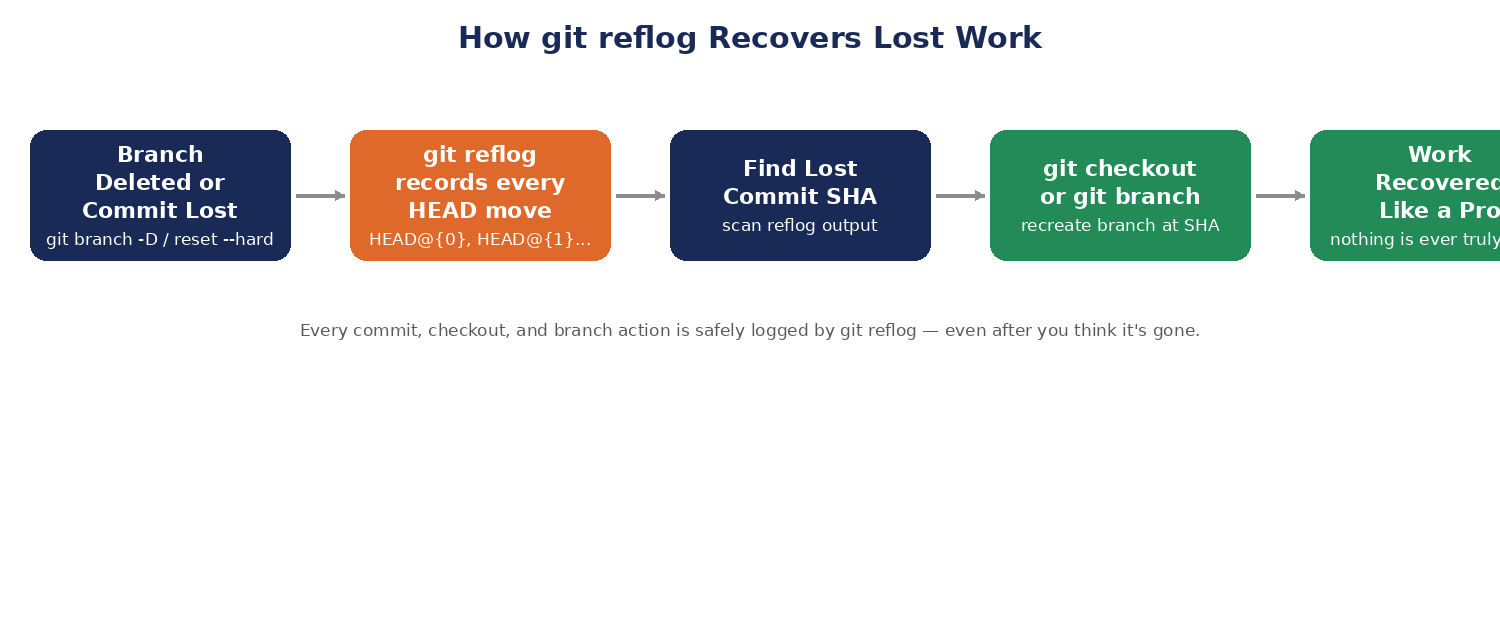
The core idea behind git reflog: nothing you do in Git actually disappears the moment you delete or reset it. It just becomes unreachable — and git reflog holds the map back to it.
Basic git reflog Command
Run this inside any Git repository:
git reflog
You’ll see output like this:
a1b2c3d HEAD@{0}: commit: add payment validation

e4f5g6h HEAD@{1}: checkout: moving from main to feature/payments

i7j8k9l HEAD@{2}: reset: moving to HEAD~1

m1n2o3p HEAD@{3}: commit: initial payment logic
|
Each line is a snapshot of where HEAD pointed at that moment. The HEAD@{n} part is your ticket back in time.
Recovering a Deleted Branch with git reflog
| Real-world scenario: you clean up branches after a merge and accidentally delete one with unpushed work still on it. |
Say you accidentally ran:
git branch -D feature/payments
Here’s the exact recovery process using git reflog:
- Run git reflog to list recent HEAD movements
- Find the last commit SHA that belonged to the deleted branch
- Recreate the branch at that commit
# Step 1: List the reflog

git reflog

# Step 2: Spot the commit from the deleted branch

a1b2c3d HEAD@{2}: commit: add payment validation

# Step 3: Recreate the branch

git branch feature/payments a1b2c3d

# Step 4: Switch back to it

git checkout feature/payments
|
That’s it — git reflog just rebuilt a branch that Git had already “deleted.”
Recovering Lost Commits After a Hard Reset
| Real-world scenario: you meant to undo one commit but typed the wrong number, and reset –hard wiped more than you wanted. |
A classic accident:
git reset --hard HEAD~3
Those three commits look gone from git log, but git reflog still has them recorded.
git reflog

# find the entry just before the reset, e.g. HEAD@{1}

git reset --hard HEAD@{1}
This rewinds your branch back to exactly where it was before the reset — using git reflog as the source of truth.
Recovering After a Bad Force Push
| Real-world scenario: you rebased locally and force-pushed, and now the remote is missing commits your teammates needed. |
A force push overwrites the remote branch, but your local git reflog still remembers the commit you had before you pushed:
git reflog

# locate the commit SHA before the force push

git checkout -b recovery-branch a1b2c3d

git push origin recovery-branch
You now have a safe branch with the pre-force-push history, ready to merge back in.
How Long Does git reflog Keep History?
By default, git reflog keeps reachable entries for 90 days and unreachable ones for 30 days. You can check the current settings with:
git config gc.reflogExpire

git config gc.reflogExpireUnreachable
This means git reflog is not a permanent backup — recover what you need before garbage collection runs.
Pro Tips for Using git reflog Like a Pro
- Run git reflog before any risky command (reset, rebase, filter-branch) so you know your current position
- Use git reflog show <branch> to see the history of one specific branch
- Combine git reflog with git fsck –lost-found for commits that lost every reference
- Always create a safety branch before experimenting: git branch backup-before-rebase
- Never run git gc –aggressive right after a mistake — it can prune reflog entries early
Common Mistakes to Avoid
- Panicking and running more destructive commands before checking git reflog
- Assuming a deleted branch is unrecoverable without even checking git reflog
- Waiting too long — reflog entries expire and get garbage collected
- Forgetting that git reflog is local only — it won’t help a teammate’s mistake on their machine
Frequently Asked Questions on git reflog
Can git reflog recover a deleted branch?
Yes. As long as the commit hasn’t been garbage collected, git reflog can locate the last SHA of a deleted branch so you can recreate it with git branch.
Does git reflog work after git gc?
Usually yes for reachable commits within the expiry window, but aggressive garbage collection can remove entries early, so recover important work quickly.
Is git reflog the same as git log?
No. git log shows commit history on the current branch. git reflog shows every movement of HEAD, including commits that are no longer part of any branch.
Can I use git reflog on a remote repository?
No, git reflog is a local-only log stored in your .git directory, not something shared through git push or git pull.
Read more: AI-Native Cloud Cost Explosion: FinOps for Agentic Workloads
Final Thoughts
A deleted branch or a lost commit feels like a disaster in the moment. It usually isn’t. git reflog turns most of these mistakes into a two-minute fix. Make it your first move whenever Git looks wrong — before you touch anything else.
| Quick recap: run git reflog → find the commit SHA → recreate the branch or reset back to it. That’s recovering like a pro. |
About the Author