Docker has transformed the way applications are built, shipped, and deployed. By packaging applications and their dependencies into lightweight containers, developers can ensure consistency across development, testing, and production environments. However, as applications grow in complexity, containers need a reliable way to communicate with one another, the host machine, and external systems.
This is where Docker networking plays a critical role.
Whether you’re deploying a single web application or managing dozens of microservices, understanding Docker’s networking drivers helps you build secure, scalable, and efficient containerized applications.
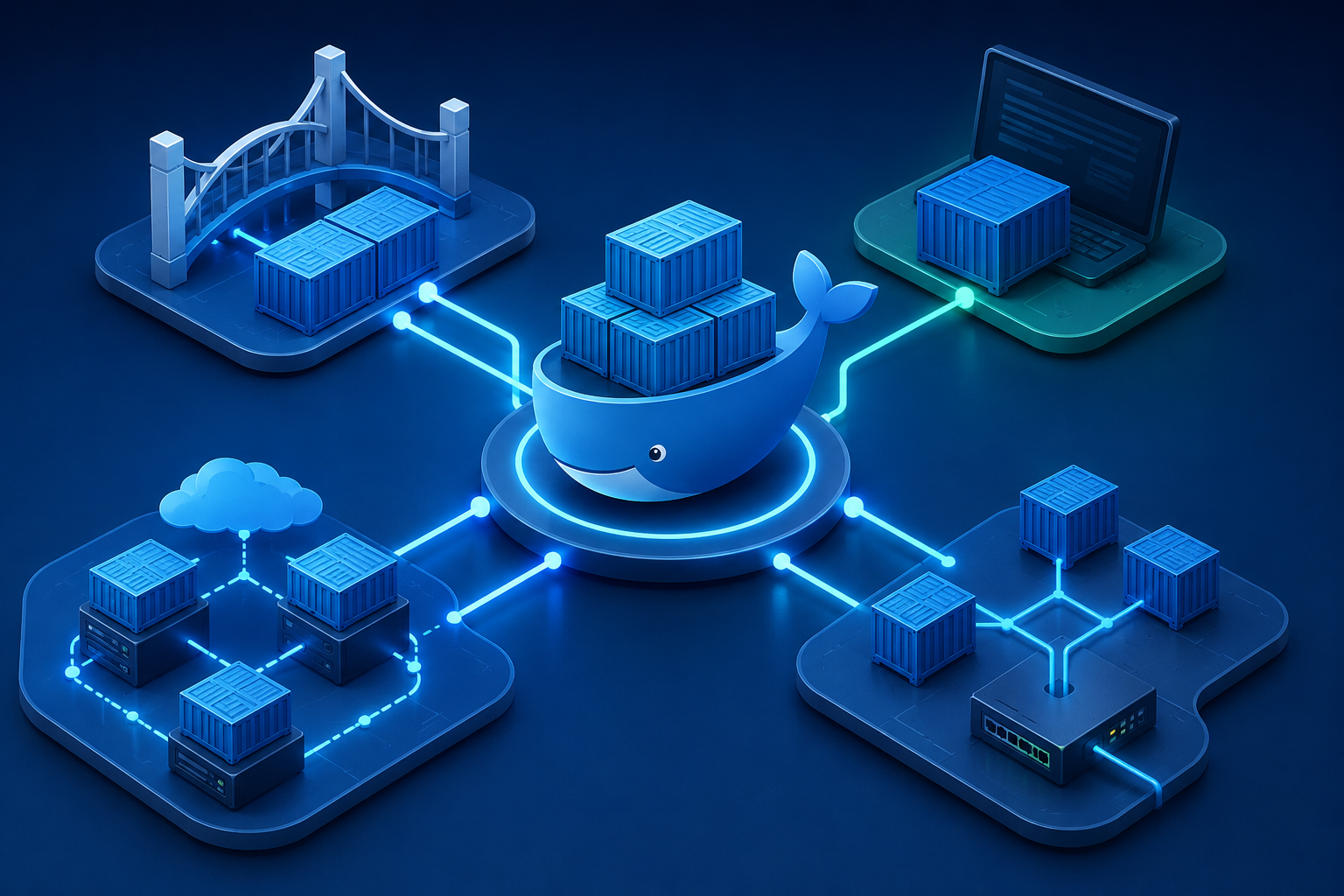
In this guide, you’ll learn about Docker’s four primary networking drivers—Bridge, Host, Overlay, and Macvlan—their architecture, advantages, limitations, and real-world use cases.
What is Docker Networking?
Docker networking is the mechanism that enables communication between:
- Containers running on the same host
- Containers running on different hosts
- Containers and the Docker host
- Containers and external networks such as the internet
Each Docker container runs inside its own isolated network namespace, which includes:
- IP Address
- Network Interface
- Routing Table
- DNS Configuration
Docker automatically creates and manages virtual networks, allowing containers to communicate without requiring developers to configure low-level networking manually.
Why Docker Networking is Important
A well-designed Docker network offers several advantages:
- Secure communication between containers
- Service discovery using container names
- Network isolation between applications
- Better scalability for microservices
- Simplified deployment across environments
- Improved security by limiting unnecessary exposure
Without proper networking, containers cannot reliably communicate with each other or external services.
Docker Network Drivers Overview
Docker provides several networking drivers, but these four are the most widely used.
| Network Driver | Scope | Best Used For |
| Bridge | Single Host | Standalone applications |
| Host | Single Host | Performance-sensitive applications |
| Overlay | Multiple Hosts | Docker Swarm and distributed services |
| Macvlan | Physical Network | Legacy applications and direct LAN access |
Let’s explore each one in detail.
1. Bridge Network
The Bridge network is Docker’s default networking driver.
Whenever you start a container without specifying a network, Docker automatically connects it to the default bridge network.
It provides a private internal network where containers can communicate while remaining isolated from other networks.
How Bridge Networking Works
Docker creates a virtual bridge interface called docker0 on the host machine.
Each connected container receives:
- A private IP address
- A virtual Ethernet (veth) interface
- NAT (Network Address Translation) access to external networks
Containers connected to the same user-defined bridge network can communicate using their container names instead of IP addresses.
Bridge Network Architecture
Internet
│
Docker Host
│
docker0 Bridge
┌────────┼────────┐
│ │ │
WebApp API App Database
Creating a User-Defined Bridge Network
Using a user-defined bridge network is recommended over the default bridge because it provides automatic DNS resolution and better isolation.
Syntax
docker network create <network-name>
Example
docker network create my_bridge
Explanation
This command creates a new bridge network named my_bridge.
Any container connected to this network can communicate with other containers on the same network using container names.
Viewing Available Networks
Syntax
docker network ls
Example
docker network ls
Expected Output
NETWORK ID NAME DRIVER SCOPE
1f23abc45de6 bridge bridge local
4b56cd78ef90 host host local
7c89de12gh34 none null local
8d90fg23ij45 my_bridge bridge local
Explanation
The command lists every Docker network available on the host along with:
- Network name
- Network driver
- Scope
This is usually the first command developers run while troubleshooting networking issues.
Running a Container on a Bridge Network
Syntax
docker run -d –network=<network-name> <image-name>
Example
docker run -d –network=my_bridge –name web nginx
Explanation
This command:
- Starts an Nginx container
- Connects it to the my_bridge network
- Assigns the container the name web
Other containers on the same bridge network can now communicate with this container using:
web
instead of remembering its IP address.
Inspecting a Bridge Network
Syntax
docker network inspect <network-name>
Example
docker network inspect my_bridge
Expected Output
The output contains:
- Network ID
- Driver
- Gateway
- Subnet
- Connected containers
- Assigned IP addresses
Explanation
This command is useful for debugging container connectivity and verifying network configuration.
Publishing Ports
Containers inside a bridge network are isolated from external traffic.
To allow external users to access a service, publish a port.
Syntax
docker run -p <host-port>:<container-port> <image>
Example
docker run -d -p 8080:80 nginx
Explanation
This command maps:
- Host Port 8080
- Container Port 80
Users can now access the application at:
http://localhost:8080
Advantages of Bridge Networking
- Easy to configure
- Built into Docker by default
- Good container isolation
- Supports automatic DNS resolution
- Perfect for local development
- Suitable for small applications
Limitations of Bridge Networking
- Works only on a single Docker host
- Requires port mapping for external access
- Not suitable for distributed applications
Real-World Use Cases
Bridge networking is commonly used for:
- Local development
- Backend APIs
- WordPress with MySQL
- Django applications
- Flask applications
- Learning Docker
2. Host Network
Unlike Bridge networking, the Host networking driver removes the network isolation layer between the container and the host machine.
Instead of assigning a separate IP address to the container, Docker allows the container to share the host’s network stack directly.
This eliminates NAT and virtual networking overhead, making Host networking the fastest option available.
How Host Networking Works
When a container uses the Host network:
- It shares the host’s IP address.
- It uses the host’s network interfaces directly.
- No virtual bridge is created.
- Port mapping is unnecessary.
Because packets don’t pass through Docker’s virtual networking layer, applications experience lower latency and better throughput.
Host Network Architecture
Internet
│
Host Network Stack
│
┌────────┴────────┐
│ │
Docker Container Other Services
The container communicates directly through the host’s network.
Running a Container Using Host Networking
Syntax
docker run –network host <image-name>
Example
docker run –network host nginx
Explanation
This command starts an Nginx container that uses the host’s network directly.
Unlike Bridge networking, there is no need to expose ports using the -p option.
If Nginx listens on port 80, it immediately becomes available on:
http://localhost:80
Difference Between Bridge and Host Networking
| Feature | Bridge | Host |
| Separate IP Address | Yes | No |
| NAT | Yes | No |
| Port Mapping Required | Yes | No |
| Isolation | High | Low |
| Performance | Good | Excellent |
Advantages of Host Networking
- Excellent network performance
- Lower latency
- No NAT overhead
- Direct access to host interfaces
- Ideal for network-intensive applications
Limitations of Host Networking
- Reduced security due to shared networking
- Containers cannot use ports already occupied by the host
- Increased risk of port conflicts
- Not recommended for multi-tenant environments
- Full Host networking support is primarily available on Linux
Real-World Use Cases
Host networking is commonly used for:
- Monitoring tools
- Performance benchmarking
- Network scanners
- High-frequency trading systems
- Streaming applications
- Low-latency services
Best Practices for Bridge and Host Networks
To get the most out of these networking drivers:
- Prefer user-defined Bridge networks over the default bridge for better DNS resolution and isolation.
- Use Host networking only when applications require maximum network performance.
- Expose only the ports that are necessary to reduce the attack surface.
- Use container names for communication instead of hardcoded IP addresses.
- Regularly inspect networks using docker network inspect to troubleshoot connectivity issues.
- Avoid running multiple Host-networked containers that require the same ports, as this can lead to conflicts.
3. Overlay Network
As applications scale across multiple servers, containers need a way to communicate seamlessly regardless of which host they’re running on. This is where the Overlay network driver becomes essential.
An Overlay network creates a virtual network that spans multiple Docker hosts, allowing containers to communicate securely as if they were connected to the same local network.
Overlay networking is primarily used with Docker Swarm, where services are distributed across multiple nodes.
How Overlay Networking Works
When an Overlay network is created:
- Docker establishes a virtual network across multiple hosts.
- Containers receive virtual IP addresses.
- Traffic between hosts is securely encapsulated and encrypted.
- Docker automatically handles routing between containers on different machines.
- Built-in service discovery enables communication using service names instead of IP addresses.
This allows applications to scale horizontally without requiring manual network configuration.
Overlay Network Architecture
Docker Swarm Cluster
Host 1 Host 2
┌──────────────┐ ┌──────────────┐
│ Web Service │◄──────► │ API Service │
│ │ │ │
└──────────────┘ └──────────────┘
\ /
\ /
Overlay Network
Initializing Docker Swarm
Overlay networks require Docker Swarm.
Syntax
docker swarm init
Example
docker swarm init
Explanation
This command initializes the current machine as the manager node of a Docker Swarm cluster.
After Swarm is initialized, Overlay networks and distributed services become available.
Creating an Overlay Network
Syntax
docker network create \
–driver overlay \
<network-name>
Example
docker network create \
–driver overlay \
my_overlay
Explanation
Creates an Overlay network named my_overlay that can be shared across multiple Docker hosts.
Deploying a Service to an Overlay Network
Syntax
docker service create \
–network <network-name> \
<image-name>
Example
docker service create \
–network my_overlay \
nginx
Explanation
This command deploys an Nginx service connected to the Overlay network.
Docker automatically handles networking between replicas, even if they’re running on different servers.
Advantages of Overlay Networking
- Supports multi-host communication
- Built-in service discovery
- Automatic load balancing
- Secure encrypted communication
- Excellent for microservices architecture
- Simplifies distributed deployments
Limitations of Overlay Networking
- Requires Docker Swarm
- Slightly higher network overhead than Bridge networking
- More complex configuration
- Performance depends on cluster networking
Real-World Use Cases
Overlay networking is commonly used for:
- Docker Swarm clusters
- Microservices
- Multi-server applications
- Cloud-native deployments
- Highly available services
4. Macvlan Network
Some enterprise and legacy applications require containers to appear as physical devices on the network.
The Macvlan networking driver allows each container to have its own unique MAC address and IP address, making it behave like an independent machine on the local network.
Unlike Bridge networking, containers communicate directly with the physical network instead of through Docker’s virtual bridge.
How Macvlan Works
With Macvlan:
- Every container gets its own MAC address.
- Containers communicate directly with the LAN.
- No Network Address Translation (NAT) is required.
- Containers appear as separate physical devices.
This networking mode is particularly useful when applications require direct Layer 2 network access.
Macvlan Architecture
Network Switch
│
┌────────────┼────────────┐
│ │ │
Host PC Container A Container B
(Own MAC) (Own MAC)
Creating a Macvlan Network
Syntax
docker network create -d macvlan \
–subnet=<subnet> \
–gateway=<gateway> \
-o parent=<interface> \
<network-name>
Example
docker network create -d macvlan \
–subnet=192.168.1.0/24 \
–gateway=192.168.1.1 \
-o parent=eth0 \
macvlan_net
Explanation
This command creates a Macvlan network using the host’s eth0 interface.
Containers attached to this network receive their own IP and MAC addresses.
Running a Container on a Macvlan Network
Syntax
docker run –network=<network-name> <image-name>
Example
docker run –network=macvlan_net alpine
Explanation
Starts an Alpine Linux container connected directly to the physical LAN.
Other devices on the network can communicate with it as though it were a standalone computer.
Advantages of Macvlan
- Native LAN communication
- Separate MAC address for every container
- Better compatibility with legacy software
- No port mapping required
- Excellent network performance
Limitations of Macvlan
- More difficult to configure
- Host-to-container communication requires additional configuration
- Depends on switch and network hardware support
- Not ideal for beginners
Real-World Use Cases
Macvlan is ideal for:
- Legacy enterprise software
- Network monitoring appliances
- DHCP servers
- DNS servers
- Applications requiring static IP addresses
Docker DNS and Service Discovery
One of Docker’s most useful networking features is its built-in DNS server.
Instead of connecting to services using IP addresses, containers can communicate using service or container names.
For example, suppose you start a MySQL container:
Example
docker run \
–name database \
–network my_bridge \
mysql
A second container on the same network can connect simply by using:
database:3306
Instead of something like:
172.18.0.4:3306
This approach makes applications easier to scale because container IP addresses may change, but service names remain consistent.
Inspecting Docker Networks
Docker provides several commands to inspect and troubleshoot networking issues.
List Available Networks
Command
docker network ls
Purpose
Displays every Docker network available on the host.
Inspect a Network
Command
docker network inspect bridge
Purpose
Shows detailed information including:
- Gateway
- Subnet
- Connected containers
- Driver
- IP addresses
Inspect Container Networking
Command
docker inspect <container-name>
Example
docker inspect web
Purpose
Displays the networking configuration of a specific container, including its assigned IP address and connected networks.
Comparing Docker Network Drivers
| Feature | Bridge | Host | Overlay | Macvlan |
| Multi-host Support | ❌ | ❌ | ✅ | Limited |
| Network Isolation | ✅ | ❌ | ✅ | ✅ |
| Performance | Good | Excellent | Good | Excellent |
| Port Mapping Required | Yes | No | Sometimes | No |
| Service Discovery | Yes | No | Yes | No |
| Complexity | Low | Low | Medium | High |
| Best For | Development | Performance | Distributed Apps | Legacy Systems |
Docker Networking Best Practices
To build secure and scalable containerized applications, follow these best practices:
- Use user-defined Bridge networks instead of the default bridge.
- Separate frontend, backend, and database containers into dedicated networks whenever possible.
- Use Overlay networks for applications running across multiple Docker hosts.
- Reserve Host networking for applications that require the lowest possible latency.
- Choose Macvlan only when containers need direct access to the physical network.
- Expose only the ports that are required by external users.
- Avoid hardcoding IP addresses; use Docker’s built-in DNS and service names instead.
- Regularly remove unused networks using docker network prune.
Common Docker Networking Commands
| Command | Description |
| docker network ls | Lists all Docker networks |
| docker network create | Creates a new network |
| docker network inspect | Displays network details |
| docker network connect | Connects a container to a network |
| docker network disconnect | Disconnects a container from a network |
| docker network rm | Removes a network |
| docker network prune | Deletes unused Docker networks |
Common Networking Challenges
Even experienced developers encounter networking issues when working with Docker. Here are some common problems and their solutions.
Containers Cannot Communicate
Possible Causes
- Containers are on different networks.
- Incorrect container names.
- DNS resolution issues.
Solution
Ensure all containers that need to communicate are attached to the same user-defined network.
Port Conflicts
Possible Causes
- Another application is already using the required port.
- Multiple Host-networked containers are trying to use the same port.
Solution
Use different host ports or switch to Bridge networking with explicit port mapping.
No Internet Access
Possible Causes
- Firewall restrictions
- Incorrect Docker daemon configuration
- DNS issues
Solution
Verify firewall settings, Docker daemon status, and DNS configuration.
Overlay Network Issues
Possible Causes
- Docker Swarm is not initialized.
- Required ports between Swarm nodes are blocked.
Solution
Initialize Swarm using:
docker swarm init
and ensure communication ports are open between cluster nodes.
Macvlan Host Communication Problems
By default, the Docker host cannot directly communicate with containers on a Macvlan network.
Solution
Create an additional Macvlan interface on the host if direct communication is required.
Frequently Asked Questions (FAQs)
1. What is the default Docker network?
Docker uses the Bridge network as the default networking driver for standalone containers.
2. When should I use Host networking?
Use Host networking for applications that require maximum network performance and can safely share the host’s network stack.
3. Is Overlay networking only for Docker Swarm?
Yes. Overlay networks are designed for Docker Swarm and are used to connect containers running across multiple hosts.
4. Why would I use a Macvlan network?
Macvlan is useful when containers need direct access to the physical LAN with their own MAC and IP addresses, such as for legacy applications or network appliances.
5. Which Docker network driver should I choose?
- Bridge: Local development and standalone applications.
- Host: High-performance or low-latency workloads.
- Overlay: Multi-host deployments and microservices.
- Macvlan: Legacy applications and direct Layer 2 network access.
By selecting the appropriate network driver for your use case, you can build Docker environments that are efficient, secure, and easier to manage.
Read More: Docker Multi-Stage Builds: Reduce Image Size by 80% With Copy-Paste Examples
Conclusion
Docker networking is a foundational concept that enables containers to communicate securely and efficiently across different environments. Choosing the right networking driver depends on your application’s architecture, performance requirements, and deployment model.
- Bridge networking is the preferred choice for standalone applications and local development.
- Host networking delivers the highest performance by sharing the host’s network stack, making it suitable for latency-sensitive workloads.
- Overlay networking enables seamless communication across multiple Docker hosts, making it ideal for Docker Swarm and distributed microservices.
- Macvlan networking gives containers their own MAC addresses and direct access to the physical network, making it valuable for legacy applications and specialized network services.
Understanding the strengths and limitations of each networking mode helps developers design containerized applications that are secure, scalable, and production ready.
About the Author